How to Install IPTV on Firestick: Complete 2026 Setup Guide
If you want to ditch cable and unlock access to thousands of live TV channels, learning how to install IPTV on Firestick is the perfect place to start. The Amazon Firestick continues to dominate the streaming market in the US and Canada thanks to its Android-based system, smooth performance, and user-friendly interface.
This step-by-step 2025 guide walks you through everything you need — from preparation to activation — so you can start streaming without hassle.
Step 1: What You Need Before Installing IPTV on Firestick
Before starting the installation process, make sure you have the following essentials ready. Proper preparation ensures a fast and trouble-free setup.
1. A Ready-to-Use Firestick
Your Firestick should be:
-
Plugged into your TV
-
Connected to Wi-Fi
-
Updated to the latest Fire OS version
2. Reliable Internet Connection
For smooth HD and 4K streaming, you’ll need a minimum of 25 Mbps dedicated internet speed. Slower speeds may cause buffering, especially during live sports events.
3. Your IPTV Subscription Credentials
You must have your IPTV login details, typically:
-
M3U URL, or
-
Xtream Codes login (Username, Password, Server URL)
Without this information, activation isn’t possible.
4. A VPN (Highly Recommended for US Users)
While IPTV technology itself is legal, heavy streaming activity can sometimes lead to ISP throttling or privacy concerns. A VPN helps by:
-
Masking your IP address
-
Protecting your data
-
Preventing bandwidth throttling
Make sure you choose a VPN compatible with Firestick.

Step 2: Enable Apps from Unknown Sources (Sideloading Setup)
Many high-performance IPTV apps aren’t available directly in the Amazon App Store. To install them, you must enable installations from external sources — a process called sideloading.
Follow these steps:
-
From the Firestick Home Screen, go to Settings (gear icon).
-
Select My Fire TV.
-
Choose Developer Options.
If Developer Options does not appear, go to About and click it seven times until you see the message: “You are now a developer.”
-
Turn Apps from Unknown Sources to ON.
-
Confirm the warning message by selecting Turn On.
Your device is now ready to install third-party IPTV apps.
Step 3: Install an IPTV Player Using the Downloader App
Because many IPTV players are not listed in the Amazon App Store, the easiest and safest method is using the Downloader app.
A. Install Downloader
-
From the Firestick Home Screen, select the Search icon.
-
Type Downloader.
-
Choose the orange Downloader app and click Download or Get.
-
Once installed, click Open.
B. Install an IPTV Player (Recommended: IPTV Smarters)
IPTV Smarters Pro is one of the most popular IPTV players due to its clean interface and powerful features.
-
Open the Downloader app.
-
In the URL field, enter the direct APK link provided by your IPTV service.
-
Click Go and wait for the file to download.
-
Select Install when prompted.
-
After installation, click Done, then delete the APK file to save storage space.
Your IPTV player is now installed and ready for activation.
Step 4: Activate Your IPTV Subscription
With your IPTV player installed, the final step is logging in using your subscription details.
You typically have two login options:
Method 1: Login with Xtream Codes API (Recommended)
This method is more stable and automatically loads channels and the EPG (TV guide).
-
Open IPTV Smarters (or your chosen player).
-
Select Login with Xtream Codes API.
-
Enter:
-
Any Name (e.g., “My IPTV”)
-
Username
-
Password
-
Server URL
-
-
Click Add User or Login.
Your channels and TV guide will load automatically.
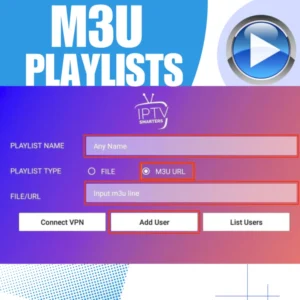
Method 2: Login Using M3U URL
This method works but may be slightly less stable.
-
Choose Login with URL or Load Playlist via URL.
-
Paste your full M3U link into the required field.
-
Confirm and allow the app to load your channel list.

Troubleshooting Common Firestick IPTV Issues
Even with the correct setup, occasional issues may occur. Here are quick solutions.
Fix Buffering or Lag
-
Run a speed test to confirm you’re getting 25+ Mbps.
-
Clear app cache:
Settings > Applications > Manage Installed Applications > [IPTV App] > Clear Cache -
Activate your VPN if ISP throttling is suspected.
Fix Channels Not Loading or Login Errors
-
Double-check your username and password for typos.
-
Perform a hard reboot by unplugging the Firestick from power for 60 seconds.
This forces a full system refresh and often resolves connection issues.
Why Choose a Premium IPTV Service for Firestick?
A high-quality IPTV provider makes a significant difference in streaming experience. The best services typically offer:
-
20,000+ live channels
-
Large VOD libraries (movies and series)
-
Reliable servers for minimal buffering
-
24/7 customer support
-
Optimized compatibility with Firestick
Choosing a stable provider ensures better uptime, smoother playback, and improved EPG accuracy.
Final Thoughts
You’ve now successfully turned your Amazon Firestick into a powerful IPTV streaming device. From enabling unknown sources to activating your subscription, you’re fully set up and ready to enjoy premium entertainment.
With the right IPTV service, a stable internet connection, and a properly configured player, you can enjoy thousands of live channels, movies, and series directly from your Firestick — no cable required.
Enjoy your streaming experience!
-